


An email to job workflow is a simple rule set: when an enquiry lands in your inbox, it becomes a job record with an owner, a stage and a next step, without you retyping anything. Get that right and a customer’s email stops being something you “must reply to tonight” and becomes the first step of a booked job. This guide shows you how to set it up, what to automate, what to leave to a human, and which Australian rules apply.
TL;DR
- Treat your inbox as a place enquiries arrive, not the place you manage them. The job record is the source of truth.
- Every enquiry gets one record, one owner, one current stage and one next-action date, whatever channel it came from.
- Define a trigger and a permitted action first (new enquiry creates a lead, accepted quote creates a pending job), then test in draft-only mode before anything sends itself.
- Automated marketing emails in Australia need consent, sender identification and a working unsubscribe. You stay responsible even if software does the sending.
- If you’re on the tools all day, the bottleneck is noticing and capturing the enquiry. A voice-first setup handles that without a laptop.
Table of Contents
- Why email-to-job is where tradie admin leaks
- The core rule: one record, one owner, one stage, one next action
- Map your stages first
- Triggers and actions: how to add an email to a workflow
- Carrying the details across to the job
- Quote to invoice: finish what the email started
- Email isn’t your only channel, so don’t build for email alone
- Australian rules you can’t skip
- A worked example: a gutter enquiry from inbox to job
- Common mistakes to avoid
- Our view: the best workflow is the one you can run from the ute
- Where Ask Hayley fits
- A simple checklist to set this up this week
- FAQ
- Sources
Why email-to-job is where tradie admin leaks
You finish a roof repair at 3pm. Your phone shows two missed calls, a text and four emails. One is a new enquiry with photos. One is a quote acceptance. One is a supplier invoice. One is spam.
Which one makes you money this week? You can’t tell without opening each one, and by the time you do it’s 8pm and you’re at the kitchen table.
The problem is rarely writing the reply. It’s noticing the enquiry, deciding who owns it and capturing enough detail that the first contact is useful. Scope details end up in an email, access instructions in a text, and the address in a voicemail. Nobody has the full picture, including you.
A good email to job workflow fixes that by moving the information from the message into a record that you, your office person or your leading hand can act on.
The core rule: one record, one owner, one stage, one next action
Before you touch any software, adopt this rule. Enquiry management guidance for Australian tradies describes it well: whatever channel an enquiry arrives through, it gets a single record with a named owner, a current stage and a next-action date.
In practice that looks like this:
| Field | What goes in it | Example |
|---|---|---|
| Record | Customer name, phone, email, site address | Sam Nguyen, 14 Banksia St, Penrith |
| Source | Where it came from | Email from website form |
| Owner | One named person | You, or your office manager |
| Stage | Where it is right now | New, Contacted, Site visit booked, Quoted, Accepted, Scheduled |
| Next action | A task with a date | Call to book site visit, Thursday |
| Attachments | Photos, plans, access notes | Three photos of the leaking gutter |
If an enquiry doesn’t have all six, it’s still an email in a pile. If it does, it’s a lead you can manage.
The inbox starts the action. It doesn’t hold the status. If “quoted” and “accepted” only live in someone’s sent folder, you’ll lose track of them the first busy fortnight.
Map your stages first
Most small trade businesses need fewer stages than they think. Start with these and adjust:
- New enquiry: arrived, not yet contacted.
- Contacted: you’ve replied or called and are gathering detail.
- Site visit or scope confirmed: you know enough to price it.
- Quoted: quote sent, follow-up date set.
- Accepted: customer said yes, job pending.
- Scheduled: in the calendar with a crew and a date.
- Complete and invoiced.
- Lost or declined: with a reason, so you learn something.
Notice that the stages describe what has happened, not what you feel you should do. Each one should have an obvious next action. If you can’t name the next action, the stage is too vague.
Triggers and actions: how to add an email to a workflow
A workflow is a set of “when this, then that” rules. Define each trigger and the single action it’s allowed to take. Four that cover most trades:
- A new enquiry arrives: create a lead record, attach the photos, set the owner and a next-action date for first contact.
- A booking request arrives: create a calendar task or hold, and flag it for confirmation.
- A complaint arrives: open an escalation record and notify you directly. Don’t draft a cheerful auto-reply.
- A quote is accepted: move the record to a pending job, ready for scheduling.
Then build it in a sensible order:
- Connect the inbox (Gmail or Microsoft 365) to the system where you track jobs.
- Use a dedicated address for enquiries, such as a “jobs@” or “quotes@” mailbox, so personal and supplier mail doesn’t trigger anything.
- Run it in draft-only mode first. The system proposes a record or a reply, and you approve it.
- Add approvals for anything sensitive, such as pricing or scope changes.
- Switch on automatic actions one at a time, starting with the safest (creating a record), and leaving customer-facing replies for last.
This staged approach matches how CRM workflow automation is usually rolled out: define the email trigger, the action and the integration, then test gradually before trusting it with live customers.
What to automate, and what to keep human
Automation is great at routine, repeatable work. It’s poor at judgement. A sensible split:
| Let automation do it | Keep a person on it |
|---|---|
| Acknowledge receipt (“Thanks, we’ll be in touch today”) | Complaints and disputes |
| Create the record and attach photos | Unusual scope or odd requests |
| Sort by job type and urgency | Pricing decisions |
| Draft a routine reply for your approval | Unclear enquiries where the intent isn’t obvious |
| Remind you of a follow-up date | Anything involving safety or a site hazard |
Every workflow needs an exception path. If the system isn’t confident about what an email is, it should send it to you, not guess.
Carrying the details across to the job
The most common failure is a hand-off. A lead is accepted in one tool, then the job is managed in another, and half the detail doesn’t make the trip.
A decent workflow carries these into the job record:
- customer name and contact details
- site address and access instructions
- a description of the work
- photos and attachments
- the lead source, so you know which channels pay
If you use a lead marketplace or an integration between two systems, check exactly what happens at each status change and how long it takes. Some integrations convert a lead to a quote or job only after a processing delay, so don’t promise a customer a booking until you’ve seen the job actually appear in your schedule. A structured AI readiness assessment is one way larger teams check how their tools hand work to each other before they rely on it.
For a sole trader, a simpler test works: send yourself a dummy enquiry with two photos, and follow it from inbox to scheduled job. Where does it stall? Where does information drop off?
Quote to invoice: finish what the email started
An email that becomes a job should also lead to a quote, a schedule slot and, eventually, an invoice, all linked to the same record. If you create the quote in one place and the invoice in another, you retype figures and make mistakes. We’ve written a separate walk-through of a hands-free quote to invoice workflow for tradies, which pairs neatly with this one.
Two habits keep the whole chain honest:
- Chase quotes on a schedule. A written follow-up cadence means you’re not relying on memory to chase a quote that went quiet.
- Track the job through to completion. Good work order tracking shows what’s booked, in progress and done, without a stack of sticky notes in the ute.
Email isn’t your only channel, so don’t build for email alone
Plenty of tradie enquiries never touch email. They arrive as missed calls, texts, website forms and messages from lead platforms. If your workflow only handles email, you’ll have one tidy pipeline and three messy ones.
The fix is to bring every channel into the same record, using the same rule. That’s the idea behind tradie lead generation done properly: capture the call or message, collect the basics, and put it in one place, whichever door it came through.
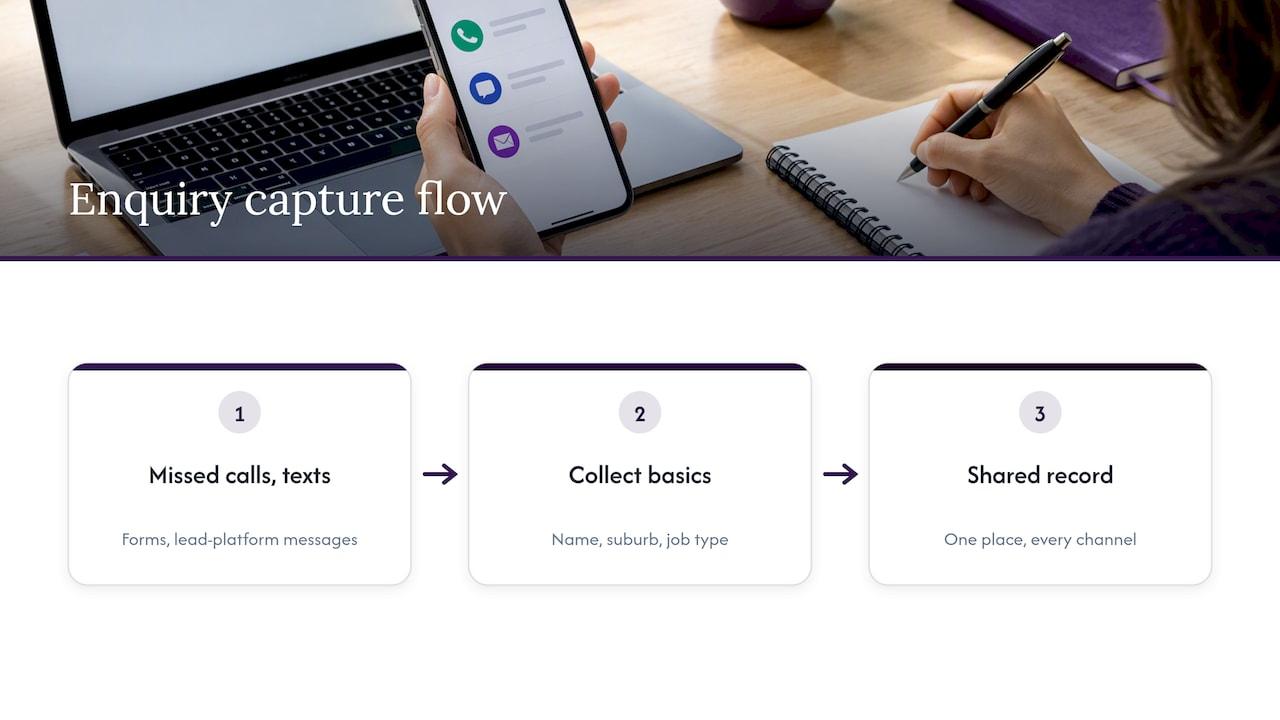
If you’re often on a roof or under a house, the call you can’t answer matters most. A missed call that turns into a record with the caller’s name, suburb and job type is worth far more than a voicemail you listen to at 7pm.
Australian rules you can’t skip
Automation makes it easy to send a lot of email fast. That’s exactly when the rules matter.
Spam Act: marketing versus operational email
In Australia, an email that offers, advertises or promotes a business or service is a commercial electronic message. Before you send marketing automation, you need the recipient’s consent, you must identify your business as the sender and you must include a clear way to unsubscribe.
The same business.gov.au guidance notes that operational messages, such as an appointment or payment reminder, are generally not spam when they carry no advertising. Be careful with mixed messages though. A reminder with a “book your next service at 10% off” banner can fall under the spam rules.
The ACMA’s unsubscribe rules fact sheet covers the detail. In short:
- Unsubscribe requests generally need to be actioned within 5 working days.
- The unsubscribe option must keep working for at least 30 days after you send.
- If a provider sends on your behalf, you’re still responsible. Be ready to show consent, identify your business and prove you honoured unsubscribes.
A practical way to stay safe: keep your automated job emails strictly operational (confirmations, reminders, quote follow-ups to people who asked for a quote), and treat any promotional campaign as a separate, consent-based list.
Privacy and customer information
Your workflow stores names, addresses, phone numbers, email addresses and site photos. Those can all be personal information, and they should be stored securely.
Whether the Privacy Act applies to you depends on your business. According to business.gov.au, businesses with annual turnover above $3 million generally must comply, and some smaller businesses are covered too. If you’re unsure which group you’re in, check with the Office of the Australian Information Commissioner or your accountant or lawyer. Either way, a few habits are sensible: limit who can see customer records, don’t keep information you no longer need, and know who to tell if something goes wrong.
A worked example: a gutter enquiry from inbox to job
Here’s how the pieces fit for a gutter cleaning and repair business.
- 8:12am. A homeowner emails the jobs mailbox from your website form, with three photos of a sagging gutter and her address.
- 8:12am. The workflow creates a lead record, attaches the photos, tags it “gutter repair” and sets you as owner. A short acknowledgement goes out, since it’s purely operational.
- 8:14am. You get one alert on your phone: new lead, suburb, job type. You’re on a ladder, so you don’t open anything.
- 11:30am. On your break, you ask for a call-back to be booked for the afternoon. The next-action date is set.
- 4:00pm. After the call, scope and a rough site-visit time are recorded. Stage moves to “Site visit confirmed”.
- Next day. Quote sent, follow-up date set for three days out.
- Day four. She accepts by email. The record moves to “Accepted” and a pending job lands in your calendar.
At no point did you search your inbox for “Banksia” or try to remember what the photos showed. That’s the point.
Common mistakes to avoid
- Forwarding everything to one inbox and calling it a system. That’s a bigger pile, not a pipeline.
- Automating replies before you’ve tested the triggers. Run draft-only first.
- No owner. If three people could reply, nobody does.
- No exception path. Complaints and odd requests need a person.
- Mixing promotion into operational emails. That can pull the whole message under the spam rules.
- Building for email only. Calls and texts are often where tradie leads begin.
- Never reviewing lost jobs. The “lost” stage with a reason tells you whether you’re too slow, too expensive or too far away.
Our view: the best workflow is the one you can run from the ute
We built Ask Hayley around a simple observation: tradies don’t fail at admin because they’re lazy. They fail because admin was designed for people at desks.
Most email-to-job setups assume you’ll open a dashboard, check a queue, click through forms and type notes. That works for an office. It doesn’t work when your hands are full and you’re on site.
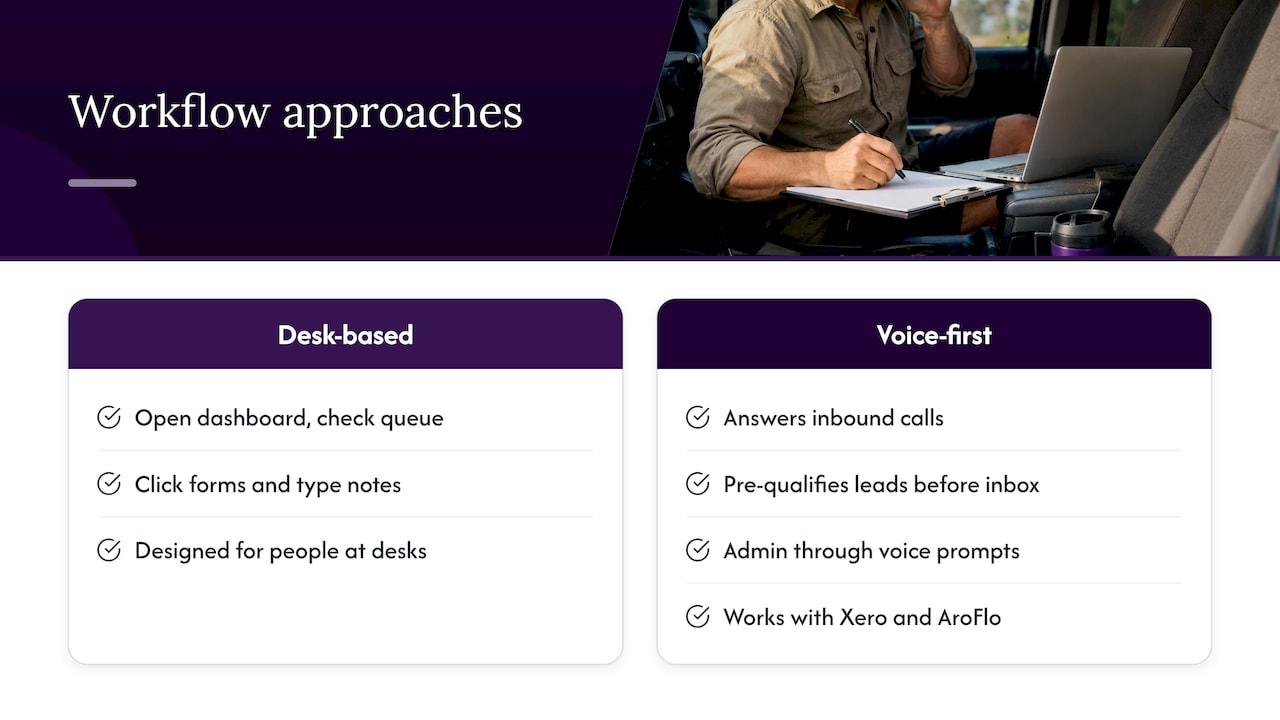
So our approach is voice-first. Hayley answers inbound calls when you can’t, pre-qualifies leads before they reach your inbox, and handles day-to-day admin through natural voice prompts. You talk to your business instead of typing into it. It’s meant to centralise the admin, work alongside the tools you already use, including integrations with Xero and AroFlo, and avoid adding another app to learn.
Our honest advice: start with the rule (one record, one owner, one stage, one next action), then pick tools that make that rule effortless on a busy day. If a system needs you to sit down for it, it’ll be the first thing you skip in peak season.
— Hayley
Where Ask Hayley fits
If you’d like the front end of this workflow handled for you, that’s what the Ask Hayley platform is for: answering calls, pre-qualifying leads and managing admin by voice, with Assistant and Office Manager plans and optional add-ons like an AI Sales Agent and AI Website Chatbot.
And if your enquiries start on your website, we also build a One Page Website that gives customers a clear way to contact you, plus tendering and safety and compliance documentation support. You can see everything on the Ask Hayley home page.
A simple checklist to set this up this week
- Create a dedicated enquiries email address.
- Write down your stages (use the list above, then trim).
- Decide who owns new enquiries, and who covers when they’re away.
- List your four triggers and the one action each can take.
- Connect the inbox to your job system and test in draft-only mode.
- Send three dummy enquiries and follow them to a scheduled job.
- Check your automated emails are operational, with consent in place for anything promotional.
- Review the lost-jobs list monthly.
FAQ
How do I add an email to a workflow?
Decide the trigger and the single action allowed, such as a new enquiry creating a lead record. Connect your Gmail or Microsoft 365 inbox to the system you track jobs in, then test in draft-only mode. Once the drafts look right, switch on automatic actions one at a time.
Should I automate replies to customers?
Automate the routine ones, like an acknowledgement that you’ve received the enquiry. Keep complaints, disputes, pricing decisions and unclear requests with a person. Start with drafts you approve before anything sends on its own.
Do Australian spam laws apply to my job emails?
They apply to commercial electronic messages, meaning anything that offers, advertises or promotes your services. Operational emails such as appointment or payment reminders are generally fine if they carry no advertising. If you’re unsure about a specific message, check the ACMA guidance or ask your lawyer.
What should a job record include?
At minimum: customer details, site address, a description of the work, photos or attachments, the lead source, a named owner, the current stage and a next-action date. If a field is missing, the workflow will eventually stall there.
Sources
- Promoting your business by email or text messages, business.gov.au
- Email and SMS unsubscribe rules, ACMA
- Protect your customers’ information, business.gov.au
- Enquiry Management for Tradies


